Image Resizer for ChatGPT: Instantly Resize and Optimize AI Images Inside ChatGPT
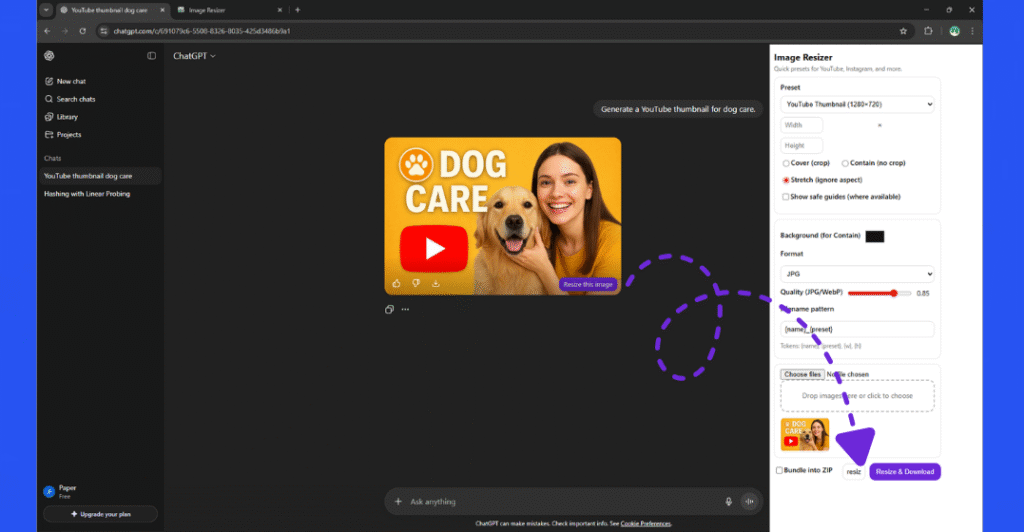
AI image generation inside ChatGPT is fast, creative, and convenient — but what if the image you generate doesn’t fit your design or platform requirements?
That’s exactly where Image Resizer for ChatGPT comes in.
This powerful Chrome extension lets you resize, crop, and optimize ChatGPT-generated images instantly — without leaving the chat.
No downloads, no extra tools — just click “Resize this image”, and you’re ready to go.
🚀 What Is Image Resizer for ChatGPT?
Image Resizer for ChatGPT is a Chrome extension designed to make AI image creation inside ChatGPT even more practical.
It adds an extra layer of functionality — allowing you to resize and optimize AI-generated images directly inside ChatGPT with one click.
Whether you’re making a YouTube thumbnail, social post, blog banner, or ad creative — you can now do everything in one place.
✨ Key Features
✅ 1-Click Resize – Just click the “Resize this image” button that appears below any ChatGPT-generated image.
✅ Social Media Presets – Choose quick presets like YouTube Thumbnail, Instagram Post, Story, Blog Banner, or Custom Size.
✅ Aspect Ratio Options – Cover, Contain, or Stretch your image easily.
✅ Custom Background – Add any background color (e.g. #2853f0) for contained images.
✅ Format Conversion – Save in JPG or WebP format for best web performance.
✅ Quality Control – Adjust image quality manually for perfect balance between size and sharpness.
✅ Instant Download – Click “Resize & Download” to save your ready-to-use image instantly.
🧭 How It Works (Step-by-Step Guide)
Step 1: Generate an Image in ChatGPT
Start by asking ChatGPT to generate an image using any prompt — for example:
“Generate a YouTube thumbnail for a Dog Care video.”
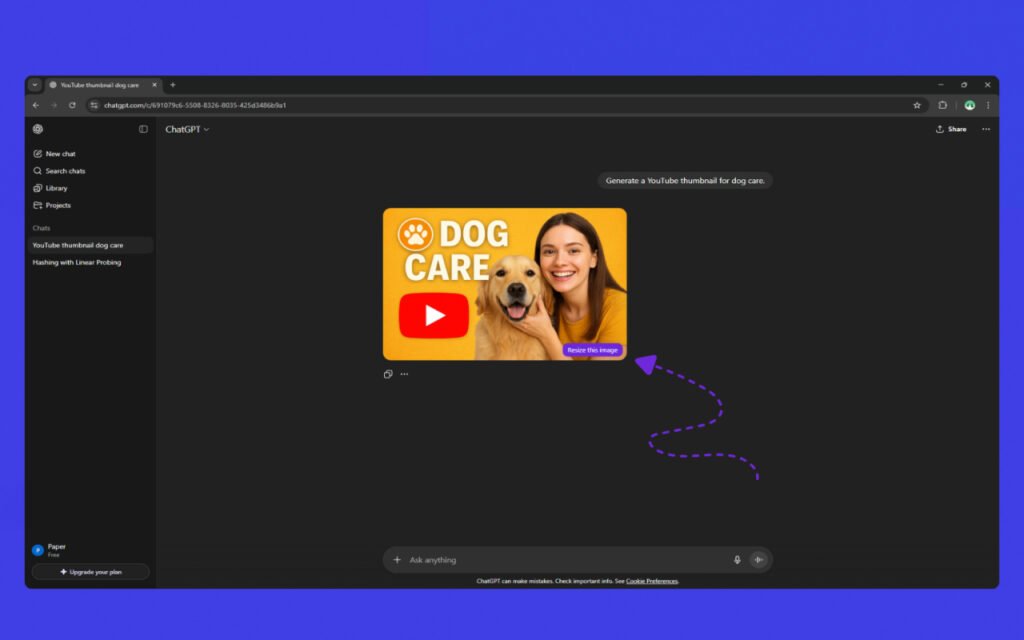
You’ll see the generated image appear inside ChatGPT.
Step 2: Click “Resize This Image”
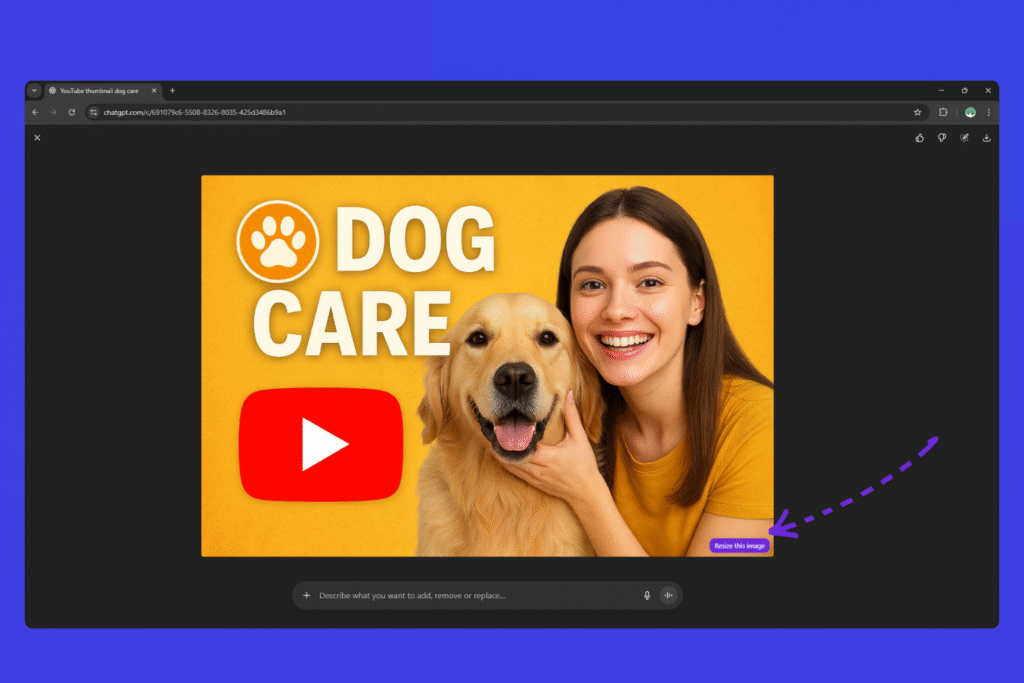
Right below the generated image, you’ll find a purple button that says “Resize this image.”
Click it — and the Image Resizer for ChatGPT popup will open automatically.
Step 3: Customize and Resize
Inside the popup, you can:
- Select a preset (e.g. YouTube Thumbnail 1280×720, Instagram 1080×1080, etc.)
- Choose a background color (useful when aspect ratios don’t match)
- Pick image format (JPG or WebP)
- Adjust quality with a simple slider
- Rename your image with automatic tokens like
{name}_{preset}
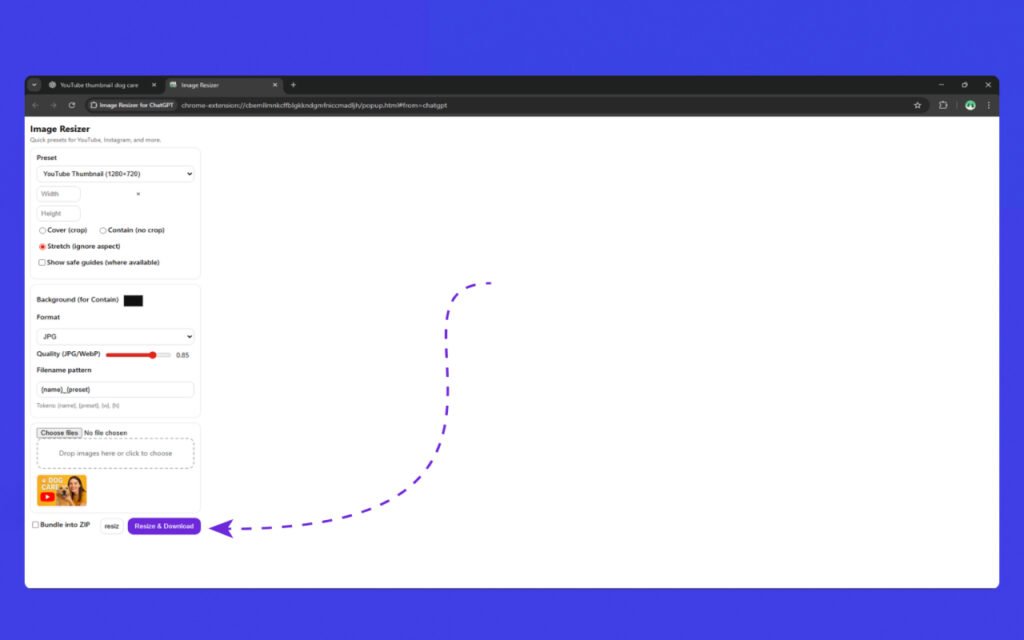
When ready, click “Resize & Download” — and your perfectly sized image will be instantly ready for use!
💡 Pro Tips
- Use Contain mode for keeping full image visibility.
- Use Cover (crop) when you want edge-to-edge visuals for thumbnails or banners.
- Select WebP format for smaller, faster-loading images on the web.
- Want to reuse your resized images? Check “Bundle into ZIP” to download them together.
🧠 Why Use Image Resizer for ChatGPT?
Before this tool, resizing ChatGPT images meant downloading them and editing manually.
Now, you can generate, resize, and optimize — all in ChatGPT.
This saves creators, marketers, and designers countless hours when preparing visuals for:
- YouTube Thumbnails
- Instagram Posts and Stories
- Blog Banners
- Product Images
- Ad Creatives
🏁 Final Thoughts
The Image Resizer for ChatGPT extension transforms ChatGPT into a complete visual creation platform.
It bridges the gap between AI creativity and practical image usage — helping you go from idea to ready-to-publish visual in seconds.
🎯 No uploads. No Photoshop. Just one click and done.
🔗 Example Use Case
- Generate image → “Create a dog care YouTube thumbnail.”
- Click → Resize this image.
- Choose preset → YouTube Thumbnail (1280×720).
- Pick background color →
#2853f0. - Click → Resize & Download.
✅ Your optimized thumbnail is ready instantly!